bga68comp: (Default)
Коли архітектура — мистецтво

Бувало таке: треба швиденько накидати архітектуру в AWS — типу “ось тут база, ось тут бекенд, а тут якийсь сервіс, який іноді працює” — ти відкриваєш Microsoft Visio або Draw.io, а воно тобі у відповідь: «Ну… я старався…». І ти дивишся на цю схему і думаєш: "Показувати "оце це" замовнику? Може, краще ні?.."

Але вихід завжди є!😎

 👉 https://aws.amazon.com/architecture/icons


Що всередині:

AWS підготував офіційні піктограми, шаблони і навіть рекомендації, щоб діаграми виглядали як у людей. Красиво. Зрозуміло. І без сорому.
Тут ви знайдете набір офіційних піктограм Amazon Web Services, які можна використовувати у своїх проектах:

– піктограми для кожного сервісу AWS (навіть для тих, які ще не встиг придумати архітектор),
– шаблони для Visio, PowerPoint, Lucidchart,
– приклади схем, щоб надихнутись.

З цим набором схема архітектури більше не виглядатиме як план втечі з Excel — вона буде, як мінімум, претендувати на “AWS Diagram of the Year 2025”❤️

Це не реклама, бо я не працюю в AWS 😉


bga68comp: (Default)
430656https://communities.vmware.com/docs/DOC-38595


Visio Stencils for the VMware Validated Designs

Версия 1


It's my pleasure the share with the community the custom stencils that are used to create the diagrams that you see in the VMware Validated Designs.

Procedure:


  1. Download and extract the attached archive.

  2. Save the stencil files to C:\Users\<Username>\Documents\My Shapes. Microsoft Visio will recognize all stencil files in the My Shapes folder.

    1. Template: sddc-template.vdsx

    2. Product and Feature Icons:  sddc-icons.vssx

    3. Colors and Boxes: sddc-shape-text.vssx


  3. Open the template file in Microsoft Visio.

  4. Load the stencils.

    1. In the Shapes panes, clicl More Shapes and select Open Stencil.

    2. In the Open Stencil dialog box, select the both stencil files, and then select Open.


Result:

You can now drag and drop the required stencil to your sheet.

Dos and Don'ts:


  • Do use the Arial Regular font.

  • Do create the text blocks first to determine if a design can fit in the maximum width when a graphic may contains a lot of text

  • Do not use a type size smaller than 11  points.

  • Do not scale the icons and shapes. They will appear different than all other graphics in the documentation.

  • Do not use different paper format. It may cause problem with the graphic appearance.

NOTE:

All official diagrams for the VMware Validated Design are provided in the product documentation found at vmware.com/go/vvd-docs.


VMware Validated Design

VMware Validated Design is a family of solutions for data center designs that span compute, storage, networking, and management, serving as a blueprint for your Software-Defined Data Center (SDDC) implementation.

VMware Validated Design for Software-Defined Data Center

VMware provides three implementations of VMware Validated Design for Software-Defined Data Center.

  • The standard implementation of VMware Validated Design for Software-Defined Data Center provides single or dual region data center architecture for an organization’s primary data centers. You can use this implementation a base for additional implementations such as VMware Validated Design for Remote Office and Branch Office (ROBO).


  • The ROBO implementation extends the standard implementation to include remote locations that require fewer resources. This implementation is suitable for deployments that are spread out geographically but that you want to manage more centrally. You must have the VMware Validated Design for Software-Defined Data Center primary data centers in place before working with the ROBO implementation.


  • The Consolidated SDDC implementation is an alternative to a single-region VMware Validated Design for Software-Defined Data Center configuration where you use one consolidated pod to run both management and tenant workloads. This implementation is suitable for configurations with lower startup cost and hardware footprint.


Logical Design of an SDDC


Architecture Overview


bga68comp: (Default)
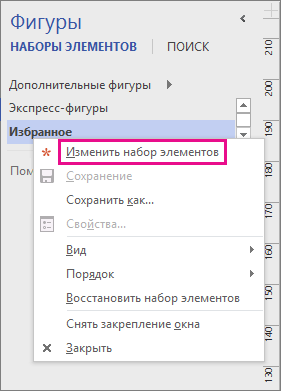
Чтобы создать образец фигуры и добавить его в набор элементов

  1. Откройте набор элементов Избранное или созданный вами набор элементов.

    Чтобы открыть Избранное, в окне Фигуры выберите Дополнительные фигуры, наведите указатель на Мои фигуры и выберите Избранное.

  2. Если набор элементов недоступен для редактирования, щелкните правой кнопкой мыши его название и выберите команду Изменить набор элементов.

    В строке названия появляется значок Красная звездочка, указывающая на то, что набор элементов можно редактировать (Красная звездочка), указывающая на то, что набор элементов можно редактировать.

Read more... )

bga68comp: (Default)
На сайтах сообществ VMTN появились официальные иконки в стенсилах для Microsoft Visio - VMware Visio Stencils 2018. Напомним, что обо всех прошлых версиях стенсилов, иконок и других графических ресурсах мы писали в начале этого года вот тут.

Если заглянуть внутрь, то вы увидите вполне себе опрятные иконки и приятные цвета:


Пример рисования диаграммы с устройством сетевого окружения виртуальной инфраструктуры:


Всего в zip-архиве лежат три файла со стенсилами:

  1. Шаблон диаграмм: sddc-template.vdsx

  2. Иконки продуктов и фичей: sddc-icons.vssx

  3. Цвета и плейсхолдеры под элементы: sddc-shape-text.vssx

Каковы рекомендации насчет этих иконок и стенсилов в целом:

  • Используйте шрифт Arial Regular.

  • Сначала создавайте текстовые блоки, чтобы понять, что дизайн вписывается в максимальный размер элементов по ширине.

  • Не используйте шрифт менее 11 пунктов.

  • Не масштабируйте фигуры и иконки - это может привести к их искажениям.

  • Не используйте другой формат страницы, это тоже может вызвать сбой в визуализации.

Скачать файл VMware Visio Stencils 2018 можно по этой ссылке: vvd-stencils.zip.

Источник:
https://www.vmgu.ru/news/vmware-visio-stencils-icons-2018
Оригинал:
Visio Stencils for the VMware Validated Designs
https://communities.vmware.com/docs/DOC-38595

Procedure:

  1. Download and extract the attached archive.

  2. Save the stencil files to C:\Users\\Documents\My Shapes. Microsoft Visio will recognize all stencil files in the My Shapes folder.

    1. Template: sddc-template.vdsx

    2. Product and Feature Icons: sddc-icons.vssx

    3. Colors and Boxes: sddc-shape-text.vssx


  3. Open the template file in Microsoft Visio.

  4. Load the stencils.

    1. In the Shapes panes, clicl More Shapes and select Open Stencil.

    2. In the Open Stencil dialog box, select the both stencil files, and then select Open.


Result:

You can now drag and drop the required stencil to your sheet.

Dos and Don'ts:

  • Do use the Arial Regular font.

  • Do create the text blocks first to determine if a design can fit in the maximum width when a graphic may contains a lot of text

  • Do not use a type size smaller than 11 points.

  • Do not scale the icons and shapes. They will appear different than all other graphics in the documentation.

  • Do not use different paper format. It may cause problem with the graphic appearance.

vvd-stencils.zip (1.4 MB)
vvd-43-architecture-diagrams.zip (5.1 MB)
VMware-Stencil2-vSphere.zip 16.7 MB
VMware-Stencil1-vSphere.zip 16.3 MB

Рабочая ссылка :) https://blog.technodrone.cloud/2013/04/vmware-visio.html

bga68comp: (Default)
Microsoft 3d Blueprint Visio Template Release 1 Training Video

3D шаблоны скачать - http://aka.ms/3dBlueprintTemplate


Microsoft 3d Blueprint Visio Template

Visio template you can use to build software architecture diagrams like those available at http://aka.ms/azblueprints. Training video at http://aka.ms/3dBlueprintTemplateVideo

How to draw isometric shapes in Microsoft Visio


Microsoft Visio 2016 - Tutorial for Beginners [+General Overview]


Microsoft Visio - Создание собственных сложных фигур


bga68comp: (Default)
Создание схемы каталогов Active Directory и LDAP

Оригинальная статья по адресу

Там же указано где взять для шаблонов Visio надстройку, которую предлагает Майкрософт для бесплатной загрузки, т.к. ни один из шаблонов не создает схему каталогов Active Directory и LDAP автоматически:

00-272611_original Microsoft Active Directory Topology Diagrammer

01-272263_original
Read more... )

Profile

bga68comp: (Default)
bga68comp

December 2025

S M T W T F S
  12 3 456
7891011 1213
14151617181920
21222324252627
28293031   

Syndicate

RSS Atom

Most Popular Tags

Style Credit

Expand Cut Tags

No cut tags
Page generated 2026-01-03 16:10
Powered by Dreamwidth Studios